Take full control of your floating windows in Visual Studio

TL;DR · AI 摘要
Visual Studio 新增对浮动窗口的精细控制功能,提升多屏开发体验。
核心要点
- 支持将工具窗口拖出主界面独立浮动
- 浮动窗口可跨显示器自由定位并记住布局
- 重启后自动恢复浮动窗口位置和状态
Take full control of your floating windows in Visual Studio - Visual Studio Blog
[Skip to main content](javascript:void(0))

Dev Blogs
Dev Blogs
* Developer
- Microsoft for Developers
- Visual Studio
- Visual Studio Code
- Develop from the cloud
- All things Azure
- Xcode
- DevOps
- Windows Developer
- ISE Developer
- Azure SDK
- Command Line
- Aspire
* Technology
* Languages
* .NET
* Platform Development
- #ifdef Windows
- Microsoft Foundry
- Azure Government
- Azure VM Runtime Team
- Bing Dev Center
- Microsoft Edge Dev
- Microsoft Azure
- Microsoft 365 Developer
- Microsoft Entra Identity Developer
- Old New Thing
- Power Platform
* Data Development
- More
Search Search
- No results
Cancel
- Dev Blogs
- Visual Studio Blog
- Take full control of your floating windows in Visual Studio
April 7th, 2026


 7 reactions
Take full control of your floating windows in Visual Studio

Principal Product Manager
[Show more](javascript:)
If you work with multiple monitors like I do, you’ve probably grown to love floating tool windows and documents in Visual Studio. Being able to pull out Solution Explorer, the debugger, or your code files onto a second (or third) screen can be a huge productivity boost.
But there’s always been a bit of friction with how these floating windows behave.
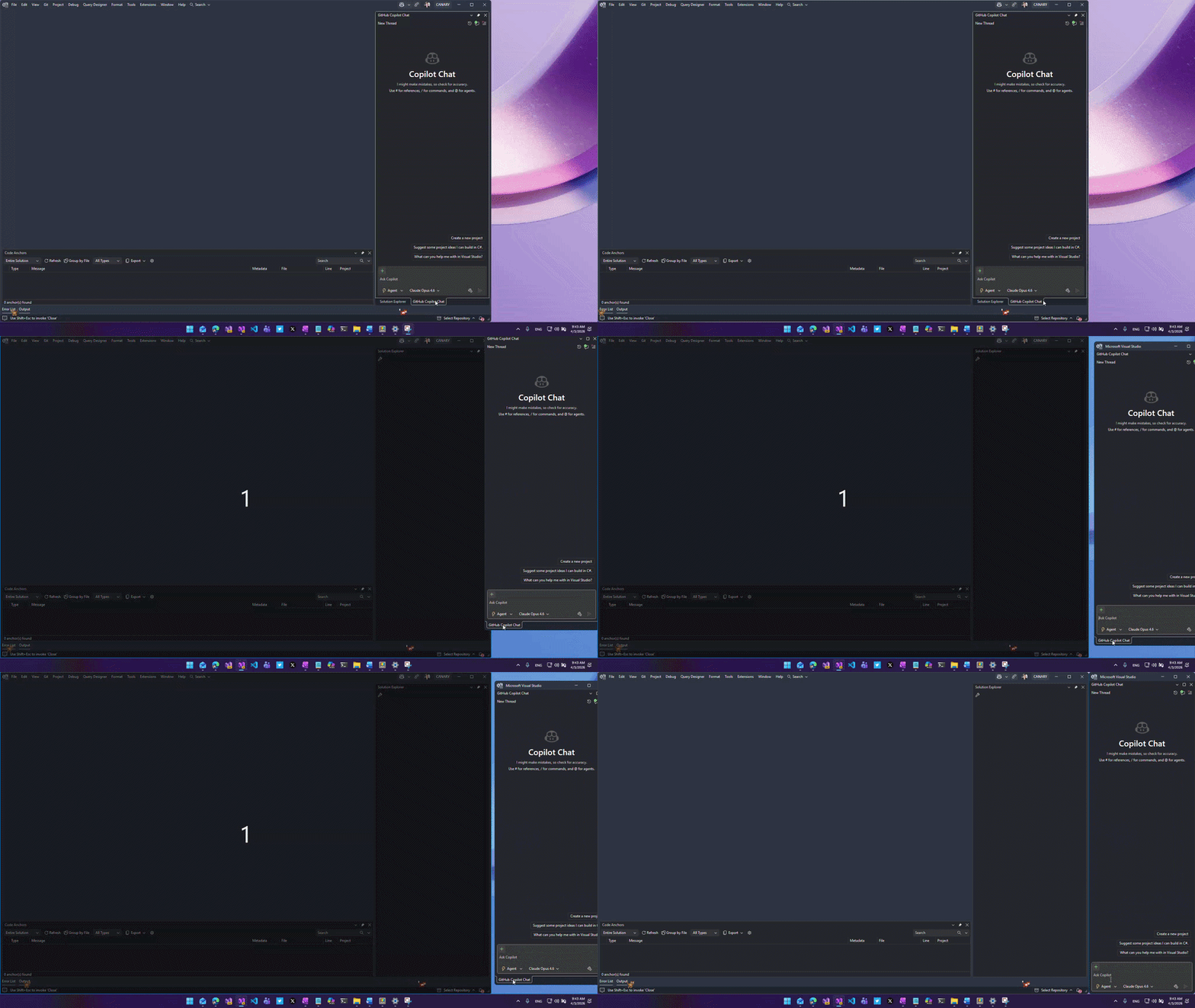
By default, floating windows are “owned” by the main Visual Studio window. That means they don’t show up as separate buttons in your Windows taskbar, they disappear when you minimize the main IDE, and they always stay on top of everything else — even when you don’t want them to.
For some workflows that’s exactly what you want. For others, it gets annoying fast.
Fortunately, there’s a little-known setting that lets you decide exactly how much control Visual Studio has over your floating windows.
The setting is here:Tools > Options > Environment > Windows > Floating Windows
You’ll see this dialog:
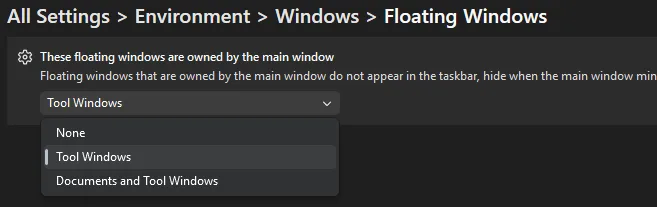
The dropdown is labeled “These floating windows are owned by the main window” and gives you three choices:
- None
- Tool Windows (the default)
- Documents and Tool Windows
Changing this one setting can completely transform how you work with floating windows.
My favorite scenario: PowerToys FancyZones
This setting really shines when you combine it with **Microsoft** and its excellent **FancyZones** feature.
I like to set it to None and then use FancyZones to create custom layouts across my monitors. Suddenly all my floating tool windows and documents behave like normal application windows — they appear in the taskbar, stay visible even if I minimize the main Visual Studio window, and I can snap them perfectly into my FancyZones layouts without them forcing themselves to the front all the time.
It feels much more natural and gives me the clean multi-monitor setup I’ve always wanted.
When to choose each option
- None: Maximum independence. Everything gets its own taskbar entry and full window behavior. Perfect for heavy multi-monitor users with PowerToys.
- Tool Windows: A nice middle ground — keep your documents floating freely while tool windows stay tied to the IDE.
- Documents and Tool Windows: The classic Visual Studio behavior.
Pro tip: Combine this with the Ctrl + double-click trick on any tool window title bar (see our earlier post on easily docking and floating tool windows) for lightning-fast layout switching. No restart required.
Have you played with this setting before? What option do you prefer: None, Tool Windows, or the default? Let me know in the comments. I’m always curious how other developers set up multi-monitor workspaces.
Happy coding!
[7](https://devblogs.microsoft.com/visualstudio/wp-login.php?redirect_to=https%3A%2F%2Fdevblogs.microsoft.com%2Fvisualstudio%2Ftake-full-control-of-your-floating-windows-in-visual-studio%2F "Sign in to react")
[3](http://devblogs.microsoft.com/visualstudio/take-full-control-of-your-floating-windows-in-visual-studio/#comments "Go to comments section")
2
- 
- [Share on X](https://twitter.com/intent/tweet?url=https://devblogs.microsoft.com/visualstudio/take-full-control-of-your-floating-windows-in-visual-studio/&text=Take%20full%20control%20of%20your%20floating%20windows%20in%20Visual%20Studio "Share on X")
- 
Category
Share
- [](https://www.facebook.com/sharer/sharer.php?u=https://devblogs.microsoft.com/visualstudio/take-full-control-of-your-floating-windows-in-visual-studio/)
- [](https://twitter.com/intent/tweet?url=https://devblogs.microsoft.com/visualstudio/take-full-control-of-your-floating-windows-in-visual-studio/&text=Take%20full%20control%20of%20your%20floating%20windows%20in%20Visual%20Studio)
- [](https://www.linkedin.com/shareArticle?mini=true&url=https://devblogs.microsoft.com/visualstudio/take-full-control-of-your-floating-windows-in-visual-studio/)
Author
Principal Product Manager
Mads Kristensen is a Principal Product Manager at Microsoft, working to enhance productivity and usability in Visual Studio. He’s behind popular extensions like Web Essentials and File Nesting and is active in the open-source community. A frequent speaker, Mads is dedicated to making Visual Studio the most enjoyable IDE for developers.
3 comments
Join the discussion.
[Leave a comment](javascript:void(0) "Leave a comment")[Cancel reply](http://devblogs.microsoft.com/visualstudio/take-full-control-of-your-floating-windows-in-visual-studio/#respond)
Sort by :
Newest
[Newest](javascript:void(0))[Popular](javascript:void(0))[Oldest](javascript:void(0))
 Raj Shah
 April 15, 2026 0 Collapse this comment Copy link Wish I’d known this sooner!
Nit, you a word in this sentence: “This setting really shines when you combine it with Microsoftand its excellent FancyZones feature.” Log in to Vote or Reply
 Felicity Rhone 1 week ago · Edited 1 Collapse this comment Copy link That’s so handy, thanks for the tip!
In my VS version (Visual Studio Professional 2022 17.14.27) the option looks a little different, but I found it:
Environment > Tabs and Windows > Floating Windows, and then de-select the checkbox for ‘Floating tool windows always stay on top of the main window’. Log in to Vote or Reply
 Mads Kristensen 1 week ago 2 Collapse this comment Copy link Thanks. Yes, VS 2022 doesn’t have the new settings system. Thanks for showing where to find it in VS 2022 Log in to Vote or Reply
Mads Kristensen 1 week ago 2 Collapse this comment Copy link Thanks. Yes, VS 2022 doesn’t have the new settings system. Thanks for showing where to find it in VS 2022 Log in to Vote or Reply
Read next
April 15, 2026
[Stop Hunting Bugs: Meet the New Visual Studio Debugger Agent Workflow](https://devblogs.microsoft.com/visualstudio/stop-hunting-bugs-meet-the-new-visual-studio-debugger-agent/)

Harshada Hole
April 15, 2026
[Azure MCP tools now ship built into Visual Studio 2022 — no extension required](https://devblogs.microsoft.com/visualstudio/azure-mcp-tools-now-ship-built-into-visual-studio-2022-no-extension-required/)

Yun Jung Choi
Stay informed
Get notified when new posts are published.
Email *
Country/Region *
I would like to receive the Visual Studio Blog Newsletter. Privacy Statement.
Subscribe
Follow this blog
- 
- [](https://twitter.com/VisualStudio "twitter")
- 
- 
- 
- 
- [](https://devblogs.microsoft.com/visualstudio/feed/ "RSS Feed")
Are you sure you wish to delete this comment?
OK Cancel
Theme
Insert/edit link
Close
Enter the destination URL
URL
Link Text
- [x] Open link in a new tab
Or link to existing content
Search
_No search term specified. Showing recent items._ _Search or use up and down arrow keys to select an item._
Cancel
##### Code Block
×
Paste your code snippet
Ok Cancel
What's new
- Surface Pro
- Surface Laptop
- Surface Laptop Studio 2
- Copilot for organizations
- Copilot for personal use
- AI in Windows
- Explore Microsoft products
- Windows 11 apps
Microsoft Store
- Account profile
- Download Center
- Microsoft Store support
- Returns
- Order tracking
- Certified Refurbished
- Microsoft Store Promise
- Flexible Payments
Education
- Microsoft in education
- Devices for education
- Microsoft Teams for Education
- Microsoft 365 Education
- How to buy for your school
- Educator training and development
- Deals for students and parents
- AI for education
Business
- Microsoft AI
- Microsoft Security
- Dynamics 365
- Microsoft 365
- Microsoft Power Platform
- Microsoft Teams
- Microsoft 365 Copilot
- Small Business
Developer & IT
- Azure
- Microsoft Developer
- Microsoft Learn
- Support for AI marketplace apps
- Microsoft Tech Community
- Microsoft Marketplace
- Marketplace Rewards
- Visual Studio
Company
- Careers
- About Microsoft
- Company news
- Privacy at Microsoft
- Investors
- Diversity and inclusion
- Accessibility
- Sustainability
Your Privacy ChoicesConsumer Health Privacy
- Sitemap
- Contact Microsoft
- Privacy
- Manage cookies
- Terms of use
- Trademarks
- Safety & eco
- Recycling
- About our ads
- © Microsoft 2026
[](http://devblogs.microsoft.com/visualstudio/take-full-control-of-your-floating-windows-in-visual-studio/#page "Back to top")